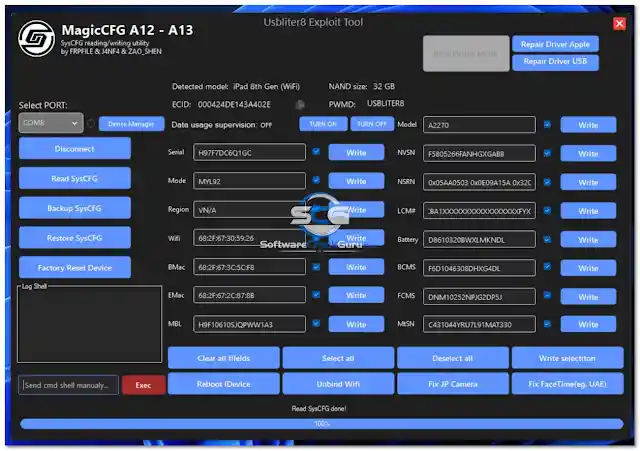
USBLiter8 is an official hardware-assisted iOS service tool from the FRPFile team designed for iPhone and iPad devices running Apple A12 and A13 Bionic chips. It works with a dedicated RP2350 hardware board (such as the Waveshare RP2350 USB-A) to boot devices into Purple Mode via an exploit — then uses the companion Windows application MagicCFG to read and write SysCFG data including serial number, MAC addresses, and region codes. It also supports full device erase, Wi-Fi unbind, camera sound fix, and FaceTime region fix. This tool has been personally tested on an iPad 8th Gen (WiFi, 32 GB) and confirmed 100% working.
USBLiter8 MagicCFG Features
- ✅ Boot Device into Purple Mode via RP2350 Board Exploit
- ✅ Read SysCFG Data (Serial Number, MAC Addresses, Region, MBL Number)
- ✅ Write SysCFG Data (Per-Field Write Button for Each Value)
- ✅ Backup Original SysCFG File
- ✅ Restore SysCFG Backup
- ✅ Erase All Device Data (Useful for Disabled Passcode & Relocked Devices)
- ✅ Unbind Wi-Fi
- ✅ Fix JP Camera Sound Issues for Certain Regions
- ✅ Fix FaceTime Regional Issues
- ✅ Automatic Device Detection (Model + NAND Storage Size)
- ✅ ECID Number Display for Device Registration
- ✅ COM Port Selection for RP2350 Board Connection
- ✅ Blue Progress Bar with Real-Time Status Display
Supported Devices
iPhone (A12 Bionic)
- ✅ iPhone XS
- ✅ iPhone XS Max
- ✅ iPhone XR
iPhone (A13 Bionic)
- ✅ iPhone 11
- ✅ iPhone 11 Pro
- ✅ iPhone 11 Pro Max
iPad
- ✅ iPad 8th Generation (Wi-Fi & Cellular)
- ✅ iPad 9th Generation (Wi-Fi & Cellular)
Note: Only A12 and A13 chip devices are supported. A14 and newer are not supported by this tool.
Screenshots
File Information
| Field | Details |
|---|---|
| Tool Name | USBLiter8 / MagicCFG A12–A13 |
| Developer | FRPFile Team |
| Platform | Windows (64-bit) |
| Package Contents | RP2350 Board Firmware Files + MagicCFG Windows App |
| Package Size | Small (server-based, no large files) |
| ECID Registration | Required (free at frpfile.com) |
| License | Free (ECID registration required) |
Download USBLiter8 MagicCFG
Download via MEGA (Official Package)
⚠️ Warning: This tool modifies low-level device data including SysCFG, serial numbers, and MAC addresses. Incorrect values may cause device detection and network issues. Always back up original SysCFG data before making any changes. Use at your own risk — for educational and testing purposes only.
Requirements
| Component | Requirement |
|---|---|
| OS | Windows 10 / 11 (64-bit) |
| Hardware | Waveshare RP2350 USB-A board (or compatible RP2350 board) |
| USB | High-quality USB cable (standard cable alone will not work) |
| Internet | Required for ECID registration at frpfile.com |
| ECID | Must be registered at frpfile.com before first use |
- Apple iOS drivers must be installed on your PC (via iTunes or 3uTools)
- Disable Antivirus or Windows Defender before running MagicCFG
How To Set Up and Use USBLiter8 MagicCFG
Step 1 – Download the Package
- Download the MEGA folder from the link above.
- Extract the contents — you will find firmware files for various RP2350 boards and the MagicCFG Windows application.
Step 2 – Flash the RP2350 Board
- Hold the Boot button on your Waveshare RP2350 board while plugging it into your PC’s USB port.
- A removable drive will appear on your PC.
- Drag and drop the correct firmware file for your board from the download folder onto this drive.
- The board will flash automatically — the LED will turn red when done.
- Unplug the board from your PC.
Step 3 – Put the iDevice into DFU Mode
- Put your iPhone or iPad into DFU Mode using the correct button combination for your model.
- Keep the device in DFU mode and do not connect to PC yet.
Step 4 – Connect via RP2350 Board
- Connect your iPhone/iPad to the PC using a cable routed through the RP2350 board.
- If the exploit loads successfully, the RP2350 board LED will turn green and your device screen will turn purple.
- This confirms the device is in Purple Mode and ready for MagicCFG.
Step 5 – Register ECID
- Open MagicCFG on your PC and note the ECID number displayed (e.g., 000424DE143A402E).
- Go to frpfile.com and register this ECID number — this step is mandatory.
Step 6 – Connect MagicCFG
- In MagicCFG, select the correct COM port from the dropdown.
- Click Connect.
- The tool detects the device automatically — model name and NAND size appear at the top.
Step 7 – Read and Back Up SysCFG
- Click Read SysCFG — the blue progress bar fills and all SysCFG fields populate.
- Fields shown: Serial Number, Region Code, Wi-Fi MAC, Bluetooth MAC, MBL Number.
- Click Backup to save the original SysCFG data before making any changes.
Step 8 – Write or Erase
- To change a value: modify the field and click the individual Write button next to it.
- To erase the device: click Erase All — useful for disabled passcode or relocked devices.
- To restore original data: click Restore and load your backup file.
⚠️ DFU Mode Tip: Getting the device into DFU mode while connecting via the RP2350 board takes some practice. If the first attempt fails, unplug everything, restart from Step 3, and try the DFU button combination again.
Known Issues
- Driver Issue on First Run: When the device reboots into exploit mode, Windows may show a yellow warning mark next to the device in Device Manager. If this happens, right-click the device in Device Manager → select Uninstall device → unplug and replug — Windows will load the correct driver automatically.
- DFU Timing: The DFU button combination while managing the RP2350 board requires physical practice. First-time failures are common — just unplug and retry.
- ECID Registration Required: The tool will not function without registering your device ECID at frpfile.com first.
FAQ
What is USBLiter8 / MagicCFG?
USBLiter8 is a hardware-assisted iOS service tool for A12 and A13 chip devices (iPhone XS through iPhone 11 Pro Max, iPad 8th and 9th Gen). Using a Waveshare RP2350 board to boot the device into Purple Mode, the companion Windows app MagicCFG reads and writes SysCFG data, erases devices, unbinds Wi-Fi, and fixes regional camera and FaceTime issues.
Is the tool free?
Yes. The software is free to download and use. You need to purchase a Waveshare RP2350 board (hardware cost) and register your device ECID at frpfile.com for free before first use.
What is Purple Mode?
Purple Mode is an Apple diagnostic exploit mode that bypasses the normal boot process and allows low-level access to the device’s SysCFG partition. It requires a specific hardware board (RP2350) to trigger the exploit — a standard USB cable alone cannot enter this mode.
What is SysCFG?
SysCFG is an Apple system configuration partition that stores hardware identifiers including the device serial number, Wi-Fi MAC address, Bluetooth MAC address, region code, and logic board number. USBLiter8/MagicCFG allows reading and writing these values directly.
Do I need to register the ECID every time?
No. ECID registration at frpfile.com is a one-time process per device. Once your device ECID is registered, you can use the tool on that device without re-registering.
Is there a free alternative without ECID registration?
Yes — Bobik Eraser is a free open-source tool for A12–A13 devices that provides the same core functions without requiring ECID registration at frpfile.com. Download it from the link provided in the download section above.
More Tools ⇒