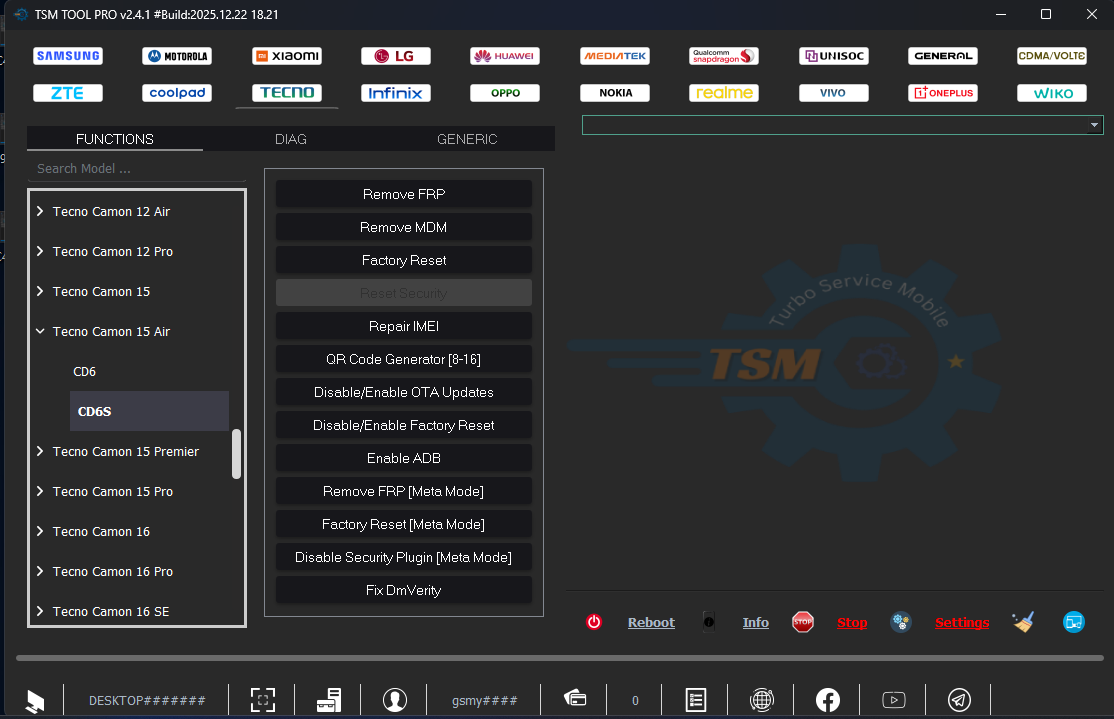
TSM Tool (Turbo Service Mobile) v2.4.1 is a Windows-based Android servicing tool designed for basic ADB and Fastboot repair tasks. It covers device info reading, reboot functions, app management, file push/pull, APK installation, factory reset, bootloader unlock, and partition flashing — all through a clean and beginner-friendly interface. The free version includes all ADB and Fastboot functions fully working. Advanced features like FRP via MTP/Download Mode, KG lock, MDM removal, IMEI repair, firmware read/write, and Samsung/LG/Xiaomi advanced modules are locked and require a paid login. A working loader is available that bypasses the login screen using any random credentials — tested and confirmed working.
TSM Tool Free Version Features
ADB Mode (Free – Fully Working)
- ✅ Read Device Information
- ✅ Reboot Normal / Reboot Recovery / Reboot Bootloader
- ✅ Install APK
- ✅ Uninstall App
- ✅ Push Files to Device
- ✅ Pull Files from Device
- ✅ Screenshot Capture
- ✅ Screen Record
- ✅ Open Settings
- ✅ Logcat Viewer
- ✅ ADB FRP Reset (Basic)
- ✅ ADB Factory Reset
Fastboot Mode (Free – Fully Working)
- ✅ Detect Device
- ✅ Get Device Information
- ✅ Reboot System / Recovery
- ✅ Unlock Bootloader
- ✅ Relock Bootloader
- ✅ Flash Boot Partition
- ✅ Flash Recovery Partition
- ✅ Erase Userdata
- ✅ Erase Cache
- ✅ Factory Reset
Locked Features (Full Version Only)
The following features are visible in the interface but locked in the free version — a paid login is required to access them:
- 🔒 FRP via MTP
- 🔒 FRP via Download Mode
- 🔒 FRP via META Mode
- 🔒 Firmware Read / Write
- 🔒 KG Lock Remove
- 🔒 MDM Remove
- 🔒 Security Patch Disable
- 🔒 EFS Explorer
- 🔒 NV / QCN Read Write
- 🔒 IMEI Patch
- 🔒 SPC Reset
- 🔒 Open Diag Menu
- 🔒 Hidden Menu Access
- 🔒 Samsung Advanced Features
- 🔒 LG Advanced Features
- 🔒 Xiaomi Advanced Features
Screenshots


File Information
| Field | Details |
|---|---|
| Tool Name | TSM Tool (Turbo Service Mobile) |
| Version | v2.4.1 (Latest – April 2026) |
| File Type | Setup + Loader (ZIP) |
| Platform | Windows (32-bit & 64-bit) |
| Install Path | C:\Program Files (x86)\TurboServiceMobile |
| License | Free (Limited) / Login Required (Full) |
| Sample Login Username | gsmyogesh |
| Sample Login Password | 12345678 |
Download TSM Tool v2.4.1
⚠️ Warning: Download and use at your own risk. The free version includes ADB and Fastboot functions only. Advanced repair features require a paid account. For educational and testing purposes only.
Requirements
- A Windows PC or Laptop (32-bit or 64-bit)
- Windows 7 / 10 / 11
- ADB & USB Drivers installed for your device brand
- USB Debugging enabled on the Android device (for ADB functions)
- Fastboot Mode accessible (for Fastboot functions)
- Disable Antivirus or Windows Defender before running the loader
How To Install and Use TSM Tool v2.4.1 (With Loader)
Step 1 – Install the Original Setup
- Download the file from the link above and extract it.
- Run the official TSM Tool setup file and complete the installation.
- By default, it installs to:
C:\Program Files (x86)\TurboServiceMobile
Step 2 – Place the Loader
- After installation, locate the loader EXE from the download package.
- Copy the loader into the same folder where TSM Tool is installed —
C:\Program Files (x86)\TurboServiceMobile. - You can also keep the loader in any other folder if preferred.
Step 3 – Open TSM Tool and Enter Login Details
- Open TSM Pro Tool from the Desktop shortcut.
- When the login screen appears, enter any random credentials. For example:
- Username: gsmyogesh
- Password: 12345678
- Do not click Login yet — keep the login window open.
Step 4 – Run the Loader as Administrator
- Right-click the loader EXE and select Run as Administrator.
- Click the Start button inside the loader.
- Wait for the success message to appear in the loader window.
Step 5 – Login and Use
- Return to the TSM Tool login window and click Login.
- The tool will open with ADB and Fastboot functions accessible.
- Connect your Android device via USB and select the required function.
⚠️ Note: If the loader EXE fails to run, right-click it → Properties → Unblock → OK, then try again as Administrator.
FAQ
What is TSM Tool v2.4.1?
TSM Tool (Turbo Service Mobile) is a Windows Android servicing tool covering ADB and Fastboot repair operations. The free version includes device info reading, reboot functions, APK install/uninstall, file push/pull, factory reset, bootloader unlock, and partition flashing. Advanced features like FRP bypass via MTP/Download Mode, MDM removal, KG unlock, IMEI repair, and brand-specific modules require a paid login.
Is the free version useful?
Yes — for basic ADB and Fastboot work the free version is fully functional. It is ideal for beginners and for testing ADB connectivity, pushing files, rebooting to different modes, unlocking/relocking the bootloader, and performing factory resets via ADB or Fastboot.
What does the loader do?
The loader bypasses the login authentication system so the tool opens without a verified paid account. After running the loader successfully, you can enter any random username and password to proceed.
Why does the loader fail to run for some users?
The loader may be blocked by Windows SmartScreen or antivirus. Right-click the loader EXE → Properties → check Unblock at the bottom → click OK — then run as Administrator again. Also disable antivirus before attempting.
Which features are locked in the free version?
FRP via MTP, Download Mode FRP, META mode, firmware read/write, KG lock removal, MDM removal, IMEI repair, EFS Explorer, NV/QCN operations, Diag Mode, Hidden Menu, and Samsung/LG/Xiaomi advanced modules are all locked in the free version.
Does it need USB Debugging enabled?
Yes — for all ADB mode functions, USB Debugging must be enabled in Developer Options on the Android device. Fastboot functions require the device to be in Fastboot mode and do not need USB Debugging.
More Tools ⇒