Phoenix Service Tool V10.0.0.6 is a free Windows-based Android servicing utility covering Samsung, Nokia, and Xiaomi devices with FRP reset, account removal, userdata wipe, and bootloader reboot functions. The latest V10.0.0.6 update brings the server back online with a new website and improved VPS infrastructure, fixes Realme EFS reset and partition manager backup issues, adds EROFS info for MTK and Qualcomm devices, introduces a refund ticket option in the user panel, and adds Oppo O+ Tool, OnePlus O+ Tool, and Realme Sales Support Tool with all latest models supported for flashing. The tool is free — extract to C: drive and install before running.
Phoenix Service Tool Features
Samsung Functions
- ✅ Read Info
- ✅ Reset FRP
- ✅ Reset Account
Nokia Functions
- ✅ Read Info
- ✅ Reset FRP
- ✅ Reset User Data
- ✅ Reset User Data + FRP
- ✅ Reboot to Bootloader
Xiaomi Functions
- ✅ Read Info (Assistant Mode)
- ✅ Read Info (Fastboot Mode)
- ✅ Reset FRP (Assistant Mode)
- ✅ Reset FRP (EDL Mode)
- ✅ Reset Mi Account (EDL Mode)
New in V10.0.0.6
- ✅ Oppo O+ Tool (All Latest Models – Flash Support)
- ✅ OnePlus O+ Tool (All Latest Models – Flash Support)
- ✅ Realme Sales Support Tool (All Latest Models – Flash Support)
- ✅ EROFS Info for MTK Devices
- ✅ EROFS Info for Qualcomm Devices
- ✅ Refund Ticket Option in User Panel
- ✅ Xiaomi Auth Flash Support
- ✅ Realme / OnePlus / Oppo Auth Flash & FRP Unlock
Screenshots
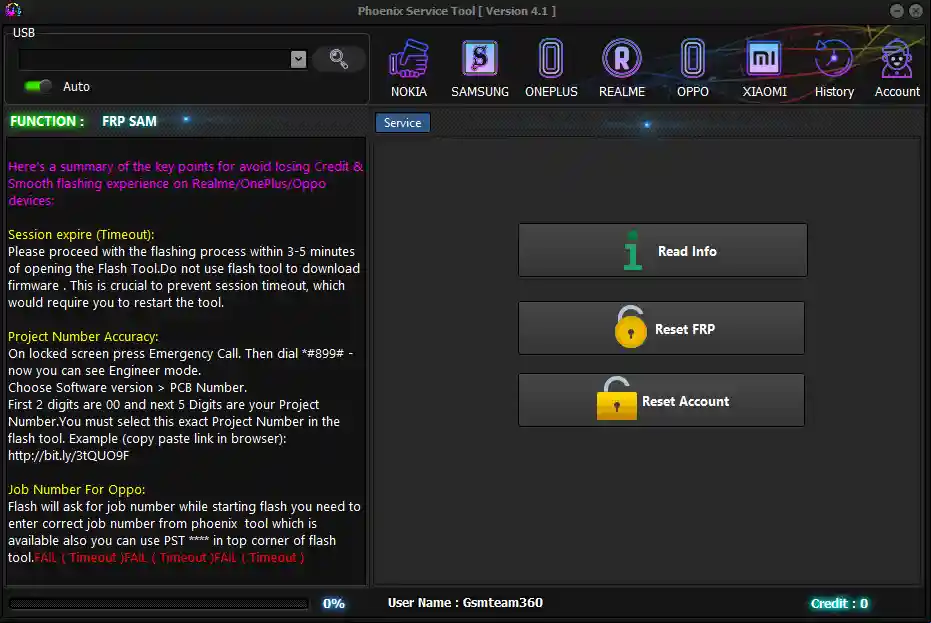
Changelogs – V10.0.0.6
What's new in v10.0.0.6
Fixed Nokia HMD Server issue
V10.0.0.6 — 2026
[Server] Server Back Online
[Server] New website launched
[Server] Added Live Server Status on main website
[Server] Added new powerful VPS for better performance
[Server] Improved overall server stability and speed
[Fix]    Fixed Realme EFS Reset issue
[Fix]    Fixed Realme QC Partition Manager backup issue
[Fix]    Fixed bugs in V6 protocol
[Fix]    Fixed "Check Your Internet Connection" error
[Fix]    Multiple minor bug fixes
[New]    Added EROFS info for MTK devices
[New]    Added EROFS info for Qualcomm devices
[New]    Added refund ticket option in user panel
[New]    Added Oppo O+ Tool (all latest models, flash support)
[New]    Added OnePlus O+ Tool (all latest models, flash support)
[New]    Added Realme Sales Support Tool (all latest models, flash support)
[Enhancement] Faster performance
[Enhancement] More stable service
[Enhancement] Website improvements
[Enhancement] System optimizations
[Enhancement] Many small improvements and bug fixes
File Information
| Field | Details |
|---|---|
| Tool Name | Phoenix Service Tool |
| Version | V10.0.0.6 (Latest – 2026) |
| Platform | Windows |
| License | Free |
| Extract To | C: Drive (Required) |
| Supported OS | Windows 7 / 10 / 11 |
Download Phoenix Service Tool V10.0.0.6
⚠️ Warning: Download and use at your own risk. Always back up your device data before performing any FRP bypass, account reset, or repair operation. For educational and testing purposes only.
Requirements
- A Windows PC or Laptop (Windows 7 / 10 / 11)
- Samsung / MTK / Qualcomm USB Drivers installed
- USB Debugging enabled on the device (for ADB/Assistant Mode)
- Fastboot Mode accessible (for Fastboot operations)
- EDL Mode accessible (for Xiaomi EDL functions)
- Extract all files to C: drive before installation
- Disable Antivirus or Windows Defender before running
How To Install and Use Phoenix Service Tool V10.0.0.6
- Download the EXE file from any link above.
- Extract / copy all files to C: drive — do not run from the Desktop or other folders.
- Disable your antivirus before running the installer.
- Run the Phoenix Service Tool EXE following the on-screen installation instructions.
- Launch Phoenix Service Tool from the Desktop shortcut.
- Install all required drivers from inside the tool — skip if already installed.
- Connect your Android device via USB cable.
- Select the required brand tab — Samsung, Nokia, or Xiaomi.
- Choose the required function and press the action button.
- Wait for the process to complete successfully.
⚠️ Important: Always extract to C: drive. Running the tool from the Desktop or restricted folders may cause path errors during installation and operation.
FAQ
What is Phoenix Service Tool?
Phoenix Service Tool is a free Windows Android servicing utility covering Samsung, Nokia, and Xiaomi devices with FRP reset, account removal, userdata wipe, and bootloader reboot. V10.0.0.6 also adds Oppo, OnePlus, and Realme O+ Tool sections with flash support for all latest models.
Is Phoenix Service Tool completely free?
Yes. The tool is free to download and use — no credits or paid activation required for the core FRP and reset functions.
What is new in V10.0.0.6?
V10.0.0.6 brings the server back online with a new website and better VPS, fixes Realme EFS reset and partition manager backup issues, adds EROFS info for MTK and Qualcomm devices, adds Oppo O+/OnePlus O+/Realme Sales Support Tool with flash support for all latest models, and fixes the “Check Your Internet Connection” error.
What is the Oppo / OnePlus O+ Tool?
O+ Tool refers to a dedicated module added in V10.0.0.6 for Oppo and OnePlus that supports firmware flashing with auth support for all latest models — alongside the existing Realme Sales Support Tool.
Why must I extract to C: drive?
Extracting to C: drive ensures the tool has correct file path access and permissions during installation. Extracting to the Desktop or user folders may cause setup and runtime errors.
Does Phoenix Service Tool support Xiaomi EDL mode?
Yes. The Xiaomi section includes Reset FRP via EDL Mode and Reset Mi Account via EDL Mode — in addition to ADB/Assistant Mode functions.
More Tools ⇒