SPD Upgrade Tool is the official firmware flashing application developed by Unisoc Technologies Co. (formerly Spreadtrum). It is designed to flash PAC-format stock ROM firmware on Android smartphones and tablets powered by Unisoc/Spreadtrum chipsets. The tool also supports FRP lock reset and screen lock removal on supported devices. SPD Upgrade Tool R27.25.4601 is the latest available version and comes packaged with the USB driver and a tutorial — completely free to download and use.
SPD Upgrade Tool Features
- ✅ Flash PAC Stock ROM Firmware on Unisoc / Spreadtrum Devices
- ✅ Reset FRP Lock (Factory Reset Protection)
- ✅ Remove Screen Lock (PIN / Pattern / Password)
- ✅ Supports All Major Unisoc / SPD Chipsets
- ✅ Supports Smartphones and Tablets
- ✅ Simple One-Click Flashing Interface
- ✅ Auto Device Detection via USB
- ✅ Includes SPD USB Driver in Package
- ✅ Official Tool – Developed by Unisoc Technologies Co.
- ✅ Free to Download and Use – No Activation Required
Screenshots
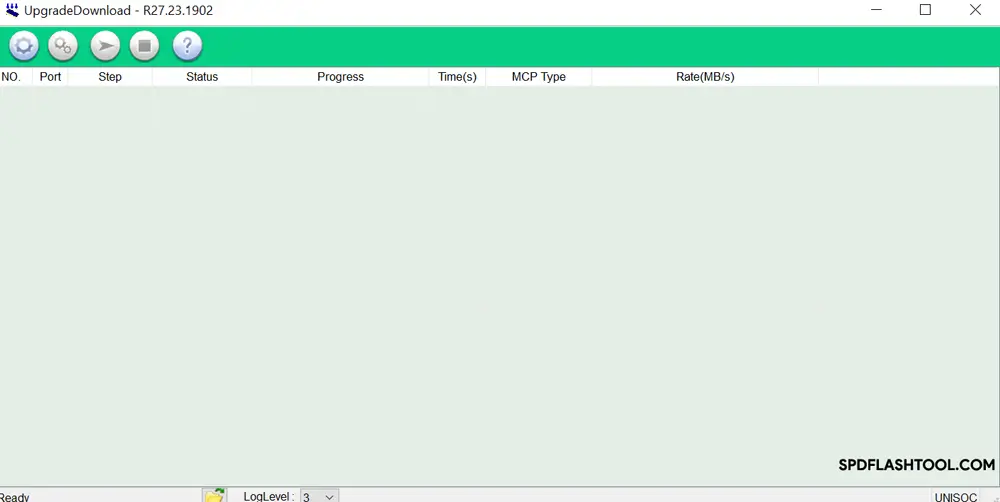
File Information
| Field | Details |
|---|---|
| File Name | SPD Upgrade Tool R27.25.4601.zip |
| Version | R27.25.4601 (Latest) |
| File Size | 12 MB |
| Developer | Unisoc Technologies Co. (Spreadtrum) |
| Supported Format | PAC Firmware Only |
| Supported OS | Windows (32-bit & 64-bit) |
| License | Free – No Activation Required |
| Scanned | Yes – Kaspersky Antivirus |
Download SPD Upgrade Tool R27.25.4601
Previous Versions
| Version | Link 1 | Link 2 |
|---|---|---|
| R27.24.2301 | Google Drive | MEGA |
| R27.24.1301 | Google Drive | AFH |
| R27.23.1902 | Google Drive | AFH |
| R27.23.0101 | Google Drive | AFH |
| R26.21.2801 | Google Drive | AFH |
| R25.21.1401 | Google Drive | AFH |
| R24.0.0003 | Google Drive | AFH |
| R23.19.4001 | Google Drive | AFH |
| R22.0.0001 | Google Drive | AFH |
| R21.0.0001 | Google Drive | AFH |
| R20.0.0001 | Google Drive | AFH |
| R19.17.4301 | Google Drive | AFH |
| R17.17.1202 | Google Drive | AFH |
| R17.0.0001 | Google Drive | AFH |
| R4.0.0001 | Google Drive | AFH |
| R2.10.1003 | Google Drive | AFH |
| R2.9.9005 | Google Drive | AFH |
| R2.9.9001 | Google Drive | AFH |
Requirements
- A Windows PC or Laptop (32-bit or 64-bit)
- SPD / Unisoc USB Driver installed on your PC
- PAC format stock ROM firmware for your device
- Original or good-quality USB data cable
- Disable Antivirus or Windows Defender before running the tool
How To Flash Using SPD Upgrade Tool
- Download SPD Upgrade Tool from the link above and extract the zip file.
- Install the SPD USB Driver included in the package (required for device detection).
- Download and extract the PAC firmware for your specific device model.
- Open SPD Upgrade Tool — no installation needed, just run the EXE directly.
- Click the firmware loading button and browse to locate your PAC firmware file.
- After selecting the firmware, click the START button.
- Now connect your device via USB while holding Volume Up + Volume Down simultaneously.
- The tool will detect the device and begin flashing automatically.
- Wait for the process to complete — do not disconnect the device during flashing.
- Once done, the device will reboot automatically with the fresh firmware installed.
⚠️ Important: Install the SPD USB Driver before connecting your device. Without the driver, the tool will not detect the phone.
FAQ
What is SPD Upgrade Tool?
SPD Upgrade Tool is the official firmware flashing application developed by Unisoc Technologies Co. (formerly Spreadtrum). It is used to flash PAC-format stock ROM on Unisoc/SPD-powered Android smartphones and tablets.
Is SPD Upgrade Tool free?
Yes, SPD Upgrade Tool is completely free to download and use. No activation, account, or credits are required. It is an official tool released by Unisoc Technologies.
What firmware format does SPD Upgrade Tool support?
SPD Upgrade Tool only supports PAC firmware format. If your device firmware is in scatter or other formats, you will need a different flash tool such as SP Flash Tool (for MTK) or MiFlash (for Xiaomi).
Which devices are supported?
The tool supports all Android smartphones and tablets running Unisoc (formerly Spreadtrum) chipsets. Common supported brands include Tecno, Infinix, Itel, ZTE, Alcatel, and other Unisoc-based devices.
What should I do if the tool does not detect my device?
Make sure the SPD USB Driver is properly installed on your PC. Use the original USB cable and try a different USB port. Ensure you are holding Volume Up + Volume Down while connecting the device to enter flash mode.
Will flashing erase my data?
Yes — flashing stock ROM using SPD Upgrade Tool will erase all personal data including photos, contacts, apps, and documents. Always back up your data before proceeding.
More Tools ⇒