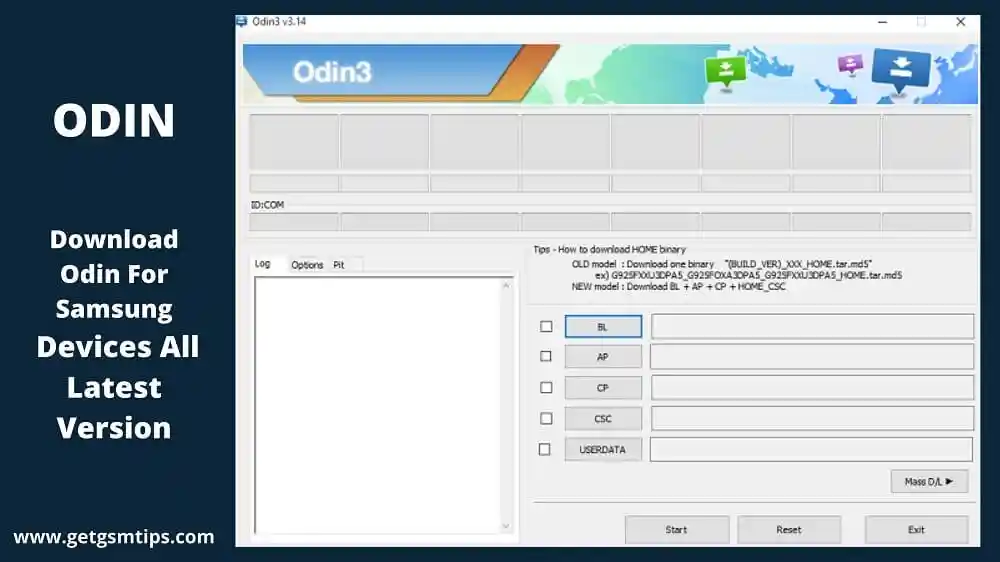
Samsung Odin3 v3.14.4 is the latest version of the official Samsung firmware flashing tool for Windows. It is used by technicians, developers, and advanced users to flash stock firmware, install custom ROMs, flash custom recovery images, and unbrick Samsung Galaxy smartphones and tablets. Odin3 communicates directly with your Samsung device in Download Mode over a USB connection, making it the most reliable tool for any firmware-related operation on Galaxy devices. Version 3.14.4 adds Galaxy S20 series support, new device model compatibility, and various bug fixes — and it remains compatible with the latest Samsung firmware including One UI 6+ (Android 14) and One UI 5 (Android 13). Before using Odin3, you must install the Samsung USB Driver v1.9.5.0 on your Windows PC.
What Is Samsung Odin3?
Samsung Odin3 is a firmware flashing utility developed internally by Samsung Electronics and later made available to the public. It is a Windows-only tool that communicates with Samsung Android devices in Download Mode (also called Odin Mode) to write firmware directly to the device’s system partitions.
Odin3 is widely used for flashing official stock firmware to repair software issues, restore a device to factory state, manually install OTA updates, install custom recoveries like TWRP, and root Samsung devices using CF-Auto-Root. It is the go-to tool for any Samsung firmware task at both service centers and home workshops.
📝 Note: Odin3 is a Windows-only application. For Mac users, the alternative is JOdin3. For Linux users, Heimdall is the open-source equivalent.
Odin3 Features
- ✅ Flash Official Samsung Stock Firmware (.tar / .tar.md5)
- ✅ Flash Custom ROM and Custom Recovery (e.g., TWRP)
- ✅ Unbrick Samsung Galaxy Devices
- ✅ Root Samsung Devices via CF-Auto-Root
- ✅ Flash Bootloader, Modem/CP, and CSC Files Separately
- ✅ Flash AP (Android Processor / PDA) Partition
- ✅ Multi-Slot Support — Flash Multiple Files Simultaneously
- ✅ Auto-Reboot After Flashing
- ✅ Re-Partition Option (Advanced Use Only)
- ✅ Flash Counter Reset (Nandroid Backup Compatible)
- ✅ LZ4 Compression Support (for Oreo and above firmware)
- ✅ One UI 6+ (Android 14) Compatible
- ✅ Lightweight — No Installation Required (Portable .exe)
- ✅ Free to Download and Use
Odin3 Interface Explained
Understanding the Odin3 interface helps you flash correctly and avoid mistakes:
| Button / Field | Meaning |
|---|---|
| BL | Bootloader partition file |
| AP | Main firmware file (Android Processor / PDA) — usually the largest file |
| CP | Modem / Core Processor file |
| CSC | Consumer Software Customization (region/carrier settings) — wipes data |
| HOME_CSC | Same as CSC but preserves user data (use this to avoid a factory reset) |
| Options → Auto Reboot | Automatically reboots the device after flashing |
| Options → Re-Partition | Repartitions device storage — use only if firmware includes .pit file |
| Log Box | Shows real-time flashing status and errors |
| PASS!! (Green) | Flashing completed successfully |
| FAIL!! (Red) | Flashing failed — check USB driver, cable, or firmware compatibility |
Supported Devices
Odin3 v3.14.4 supports virtually all Samsung Galaxy smartphones and tablets, including:
- ✅ Samsung Galaxy S Series (S3 through S25 Ultra)
- ✅ Samsung Galaxy Note Series (Note 1 through Note 20 Ultra)
- ✅ Samsung Galaxy A Series (all models)
- ✅ Samsung Galaxy M Series
- ✅ Samsung Galaxy F Series
- ✅ Samsung Galaxy Z Fold & Flip Series
- ✅ Samsung Galaxy Tab Series (all models)
- ✅ Samsung Galaxy J Series
- ✅ Samsung Galaxy Grand Series
- ✅ Samsung Galaxy C Series
- ✅ All Samsung Android Devices in Download Mode
Tool Information
| Detail | Info |
|---|---|
| Tool Name | Samsung Odin3 |
| Latest Version | v3.14.4 |
| File Name | Odin3_v3.14.4.zip |
| File Size | ~4.3 MB |
| Developer | Samsung Electronics |
| Supported OS | Windows XP / 7 / 8 / 8.1 / 10 / 11 |
| File Format | Portable .exe (No Installation Needed) |
| Compatible Firmware | .tar / .tar.md5 |
| License | Freeware |
All Versions (Changelog)
Odin3 v3.14.4 — Latest Version
[New] Galaxy S20 series support added
[New] New models added: A102U, A102U1, A102W, S102DL, etc.
[Fix] Bug fixes and general enhancements
[Compat] Compatible with One UI 6+ (Android 14), One UI 5 (Android 13)

Odin3 v3.14.1 — Stable Release
[New] Full Android 10 (One UI 2.0) support added
[New] Galaxy Note 10 and Galaxy S10 series support

Odin3 v3.13.3
[New] Full Android 9 (Pie) support added

Odin3 v3.13.2
[New] Galaxy S10 series support added

Odin3 v3.13.1 — Recommended Stable
[New] Added LZ4 compression support (required for Oreo firmware)
[Compat] Galaxy S8, S8+, S9, S9+, Note 8, Note 9 Oreo files

Odin3 v3.12.10
[Fix] Removed TFLASH option
[Fix] Fixed error for 8GB file in tar
[New] Added popup warning for CustomerService
[Fix] Fixed COM port detection issue
[Change] Renamed "USERDATA" in UI

Odin3 v3.12.7
[Fix] Fixed bug in tar parsing

Odin3 v3.12.5
[Change] Changed erase command and added erase partition reporting
[New] Added IMEI condition option

Odin3 v3.12.4
[Fix] Bug fixes

Odin3 v3.12.3
[Fix] Fixed flashing error for Galaxy S7/S7 Edge USA models (AT&T, T-Mobile)
[New] Support for Galaxy S7, S7 Edge, Note 6, Note 7
[Fix] Prevented cross-download for Hero ATT

Odin3 v3.11.2
[New] Added support for Galaxy C5, C7, S7 Edge, S7 Active, Z3
[New] Two UI designs: Classic and new layout

Odin3 v3.10.7
[New] RTN for Sprint added
[Fix] Removed Windows XP support

Odin3 v3.09
[Fix] Bug fixes and improved device compatibility
Download Samsung Odin3 v3.14.4
Latest Version:
Samsung Odin3 v3.14.4 (Recommended)
Stable Version:
Previous Versions:
Samsung Odin3 v3.13.1 | Best for Android 8 & 9 firmware
Samsung Odin3 v3.12.3 | Best for Android 6 & 7 firmware
Samsung Odin3 v3.09 | For older Samsung devices
⚠️ Warning: Always use the correct Odin3 version for your firmware. Using the wrong version may cause flashing errors or brick your device. For Android 8.0 and above, use v3.13.1 or later. For the latest Galaxy devices, use v3.14.4. Make sure to install the Samsung USB Driver before using Odin3.
How To Use Samsung Odin3 To Flash Firmware
Prerequisites
Before you begin, make sure you have:
- Samsung Odin3 v3.14.4 — downloaded and extracted (it’s a portable .exe, no installation needed)
- Samsung USB Driver — installed on your Windows PC
- Correct Stock Firmware — downloaded for your exact device model number (e.g., SM-A205F, not just Galaxy A20). Check the Samsung Galaxy A20 SM-A205F Flash File as an example.
- USB Data Cable — preferably the original Samsung cable
- Device with at least 50% battery
Step-by-Step Flashing Guide
- Extract the firmware zip file on your PC. You will see files with extensions like .tar or .tar.md5 (e.g., AP_xxx.tar.md5, BL_xxx.tar.md5, CP_xxx.tar.md5, CSC_xxx.tar.md5).
- Extract Odin3_v3.14.4.zip and open the Odin3.exe file. Right-click and select Run as Administrator.
- Boot your Samsung device into Download Mode:
- For older devices: Hold Volume Down + Home + Power simultaneously.
- For newer devices (no Home button): Hold Volume Down + Bixby + Power, then press Volume Up to confirm.
- For Galaxy S21 and newer: Power off the device, then hold Volume Down + Volume Up while connecting via USB.
- Connect your device to the PC using the USB cable. Odin3 will show a blue box with the COM port number when the device is detected.
- Load the firmware files into Odin3:
- Click BL → select the BL_xxx.tar.md5 file
- Click AP → select the AP_xxx.tar.md5 file (the largest file)
- Click CP → select the CP_xxx.tar.md5 file
- Click CSC → select the CSC_xxx.tar.md5 file (this wipes data), OR select HOME_CSC to preserve your data
- Check Odin3 Options:
- ✅ Keep Auto Reboot checked
- ✅ Keep F. Reset Time checked
- ❌ Do NOT check Re-Partition unless the firmware includes a .pit file
- Click Start to begin flashing.
- Wait for Odin3 to complete the process — do not disconnect the device during flashing.
- When flashing is complete, Odin3 will show PASS!! in a green box and your device will automatically reboot.
⚠️ If you see FAIL!! (red): Do not panic. Disconnect the device, close Odin3, reinstall the Samsung USB Driver, restart your PC, and try again with a different USB port or cable.
FAQ
What is Samsung Odin3 used for?
Samsung Odin3 is used to flash firmware files directly onto Samsung Galaxy devices via USB in Download Mode. Common uses include flashing official stock firmware to repair a broken device, manually installing OTA updates, installing custom recovery images (like TWRP), rooting via CF-Auto-Root, and unbricking devices that won’t boot.
Is Odin3 safe to use?
Yes. Odin3 is developed by Samsung Electronics and is considered safe for both your PC and your Samsung device when used correctly. Always make sure to use the correct firmware for your exact device model and follow the steps carefully to avoid errors.
Do I need to install Odin3?
No. Odin3 is a portable application — simply extract the zip file and run Odin3.exe directly. No installation is required. However, you must install the Samsung USB Driver separately for Odin3 to detect your device.
What is the difference between CSC and HOME_CSC?
CSC performs a full factory reset and wipes all user data during flashing. HOME_CSC preserves your user data. If you are flashing to repair a software issue and want to keep your data, always choose HOME_CSC. If you want a completely clean flash, use CSC.
Which Odin3 version should I use?
Use v3.14.4 for the latest Galaxy devices (S20 series and newer). Use v3.14.1 for Galaxy S10, Note 10, and Android 10 firmware. Use v3.13.1 for Android 8.0 Oreo and Android 9.0 Pie firmware on Galaxy S8, S9, and Note 8/9. Use v3.09 for much older Galaxy devices.
Odin3 shows FAIL!! — what should I do?
Try the following:
- Reinstall the Samsung USB Driver and restart your PC.
- Use a different USB port (preferably USB 2.0) or a different cable.
- Try running Odin3 as Administrator.
- Make sure you have the correct firmware for your exact device model number.
- Try an older version of Odin3 if the current version fails.
Does Odin3 work on Mac or Linux?
No. Odin3 is a Windows-only application. Mac users can use JOdin3 and Linux users can use Heimdall as alternatives.
Will flashing with Odin3 void my warranty?
Flashing custom ROMs or root packages using Odin3 may trip the Knox security counter (Knox warranty void bit), which permanently voids the Samsung warranty. Flashing official stock firmware using Odin3 generally does not void the warranty, but it is recommended to check your regional warranty terms before proceeding.
More Tools ⇒